
Arabic 101 Keyboard Layout Explained: Home Row, Shift Layer and Finger Placement
A breakdown of the Arabic 101 layout — home row, top/bottom rows, the Shift layer, hamza forms and harakat — and the right order to learn them in.
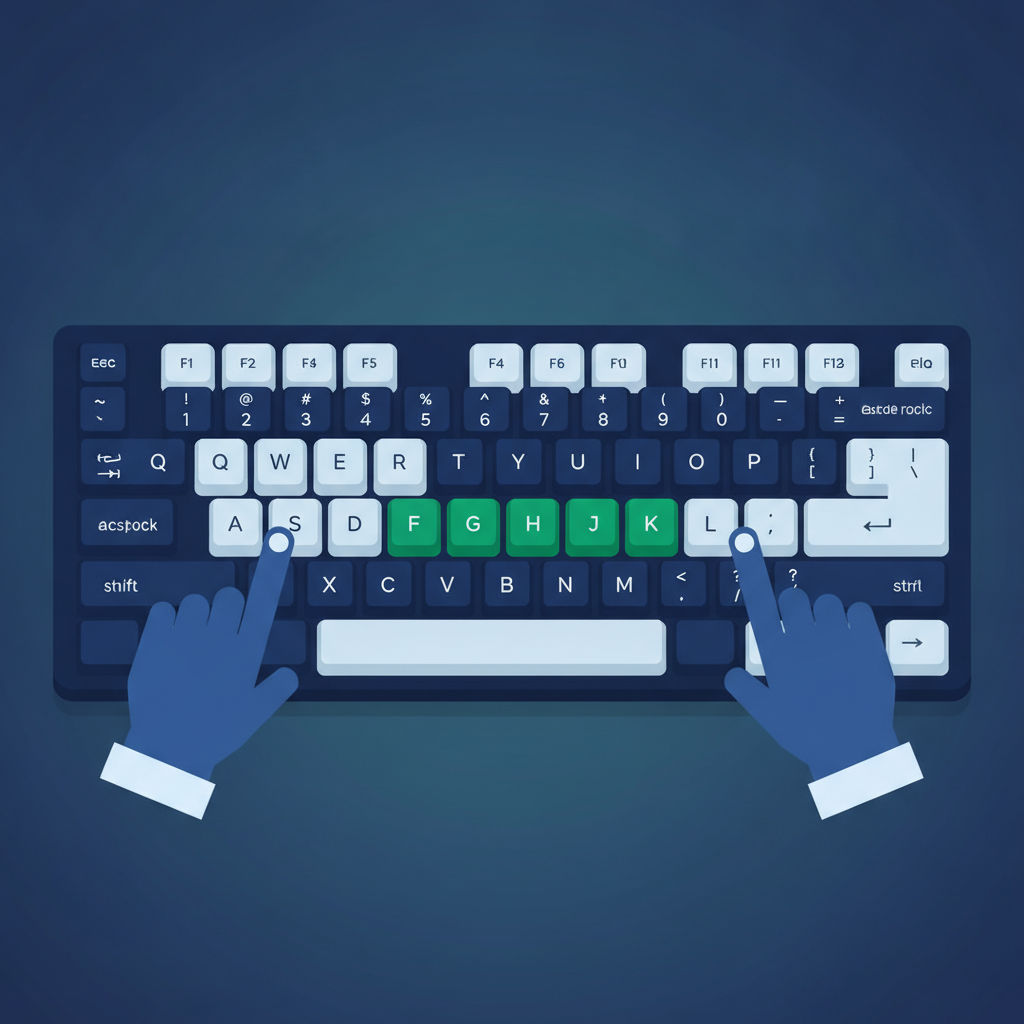
Arabic 101 (Microsoft keyboard identifier 00000401) is the layout printed on virtually every physical Arabic keyboard sold today and installed by default on Windows, macOS and Linux. If you're serious about typing Arabic without looking down at your hands, this is the layout to learn — and understanding its structure before you start drilling will save you weeks of confusion.
The home row: your anchor
Just like QWERTY places A-S-D-F and J-K-L-; under your resting fingers, Arabic 101 anchors its most frequent letters on the home row:
- Left hand: ش س ي ب
- Right hand: ل ا ت ن م ك
These eight letters cover a disproportionate share of everyday Arabic text, which is exactly why they sit under your strongest, most accurate fingers. Every touch-typing method starts here for a reason: the home row is where your fingers live between keystrokes, and building unconscious return-to-home-row habits is the foundation everything else is built on.
The top and bottom rows
Once the home row is automatic — meaning you can find any of those eight letters without glancing at the keyboard — the top and bottom rows extend the same finger-to-key logic upward and downward. Each finger is responsible for a small, fixed set of keys directly above and below its home row position, exactly as in Latin-script touch typing.
The Shift layer
Arabic 101 packs a second layer of characters onto Shift, and this is where the layout differs most from what English typists expect:
- Hamza forms: أ (alef with hamza above), إ (alef with hamza below), آ (alef with madda) — each a Shift-combination of a base key. Full breakdown in our hamza guide.
- Lam-alef ligature (لا): its own dedicated key. One keystroke produces both letters — see our lam-alef guide.
- Harakat (vowel marks): fatha, damma, kasra, tanween, shadda and sukun all live on Shift positions — full guide here.
How to enable it
- Windows: Settings > Time & Language > Language & region > Add a language > Arabic, then confirm Arabic 101 is the selected keyboard.
- macOS: System Settings > Keyboard > Input Sources > add "Arabic – PC".
- Switching: Alt+Shift on Windows or Control+Space (or your configured shortcut) on macOS toggles between your Arabic and Latin layouts. Full walkthrough in our keyboard-switching guide.
A practical learning order
- Home row, both hands, until finding each letter is automatic.
- Top row, then bottom row, one at a time.
- The dedicated lam-alef key.
- Hamza forms on Shift.
- Harakat, last — they're the least frequently needed in everyday typing but essential for formal and religious text.
Trying to learn everything simultaneously is the most common reason beginners give up. Sequenced practice — home row locked in before you add the next layer — is significantly more effective than trying to memorize the whole keyboard map at once.
Practice it
LearnType's Arabic 101 course follows exactly this sequence across 111 structured lessons, with each new key introduced only after the previous ones are solid, live WPM and accuracy tracking, and lessons that unlock progressively so you can't skip ahead of your own muscle memory.
Related reading
- Arabic Touch Typing: The Complete Guide
- Arabic 101 vs Arabic 102
- How to Build Muscle Memory for the Arabic Keyboard
FAQ
Why does Arabic 101 put lam-alef on its own key? لا is one of the most frequent two-letter combinations in Arabic, so the layout designers gave it a dedicated key rather than requiring two separate keystrokes — a small efficiency that compounds significantly over normal typing volume.
Do I need to learn harakat as a beginner? Not immediately. Most everyday Arabic text — messages, articles, social media — omits harakat entirely, since fluent readers infer vowels from context. Learn the base letters first and add harakat when you need it for formal, religious, or educational writing.
Is Arabic 101 different in different Arab countries? No — it's the same software layout (KLID 00000401) used across Egypt, Saudi Arabia, the Gulf states, the Levant and North Africa, which is exactly why it's the safe, universal choice to learn.
Written by
LearnType Editorial Team
Typing Education Editors
The LearnType Editorial Team produces and reviews typing curricula for English, Bangla (Avro & Bijoy), and Hindi. Our lessons and guides are developed with experienced typing instructors and aligned to real government typing-test standards, including SSC, CPCT, and state-level exams.
Keep reading
More in Arabic Typing
The History of the Arabic Keyboard Layout: From Typewriters to Windows
From mechanical typewriters to the modern Arabic 101 standard — the design history behind the Arabic keyboard layout and why it looks the way it does.
Arabic Keyboard Stickers vs Learning Touch Typing: Which Works Better?
Arabic keyboard stickers solve a narrow problem but can delay real touch-typing skill. Here's what actually works instead, and why.

Best Free Tools and IMEs for Typing Arabic Online
An honest comparison of free tools for typing Arabic online — OS input methods, phonetic IMEs, on-screen keyboards, and structured courses.